How I Write Blog Posts with Obsidian
You've probably run into some Obsidian evangelist espousing some convoluted system of organizing all their notes, and building some knowledge base. Heck, I was just involved in a conversation about Personal Knowledge Management. This isn't that article.
My personal use of Obsidian tends to be simple. I build into it the tools that I need to get things done, to make things easier. There is a saying (which I can't locate, so I'll paraphrase) that a system should only be as complicated as needed, and nothing more. The idea is there is no reason to build a Rube Goldberg machine when all you really need is a wrench. That's the approach I take: use a wrench to bolt on a few tools, and tighten things up where necessary.
So, this article will walk through how I work with things now. This system has evolved a bit over the last few weeks, and is likely to evolve further. But the primary idea is, and will remain: keep it simple, but make it useful.
Planning
When I switched from WordPress to write.as, the biggest thing I “lost” was having a way to plan the articles that I wanted to work on. Obsidian recently added a feature called Bases that made it simple to set up a table containing all the articles for all three of my sites:
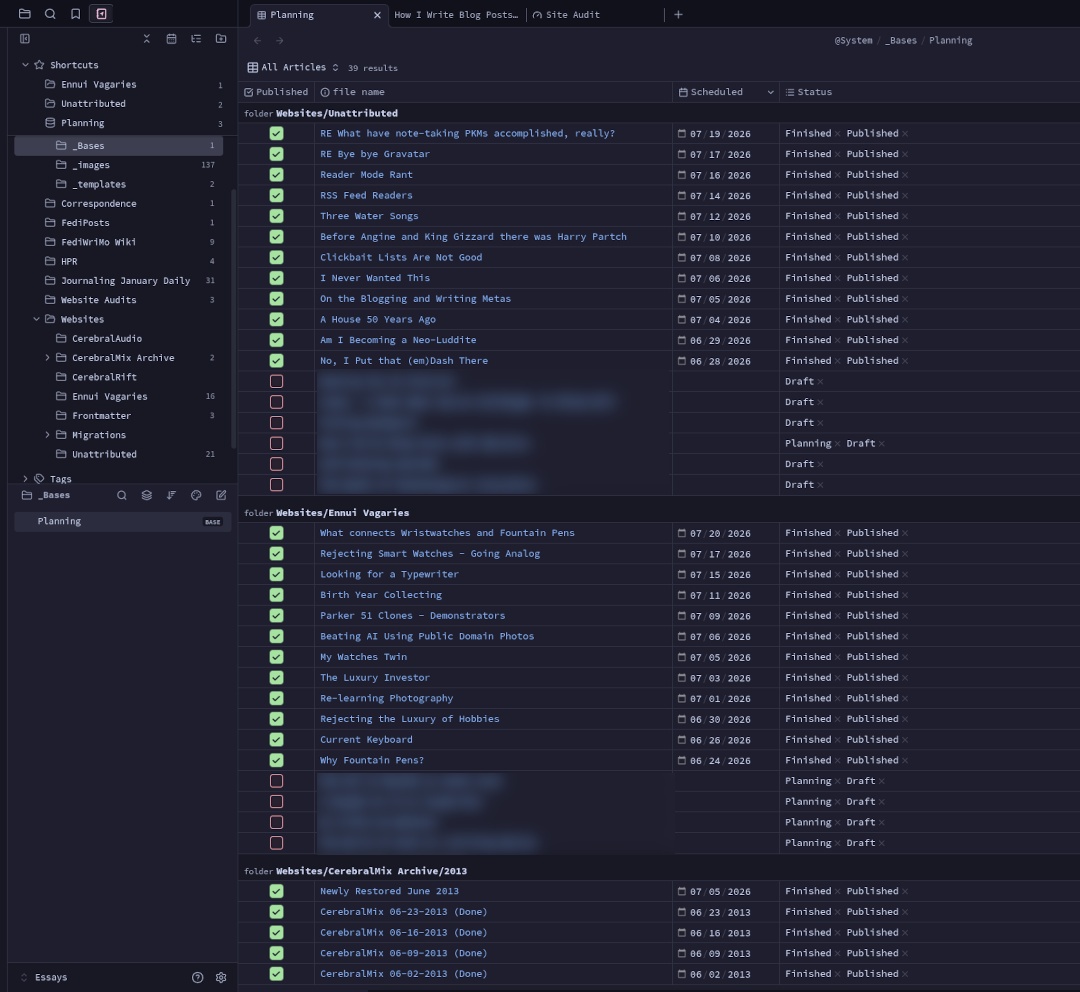 View of the main planning table. Unpublished articles blurred—no spoilers! ;)
The simplicity here is that the table quickly lets me see which articles I have published, which are in the planning / drafting stage, and the scheduled date for the articles. But, looking at a table this big could be tricky to navigate. Fortunately, I have a couple of alternate views available:
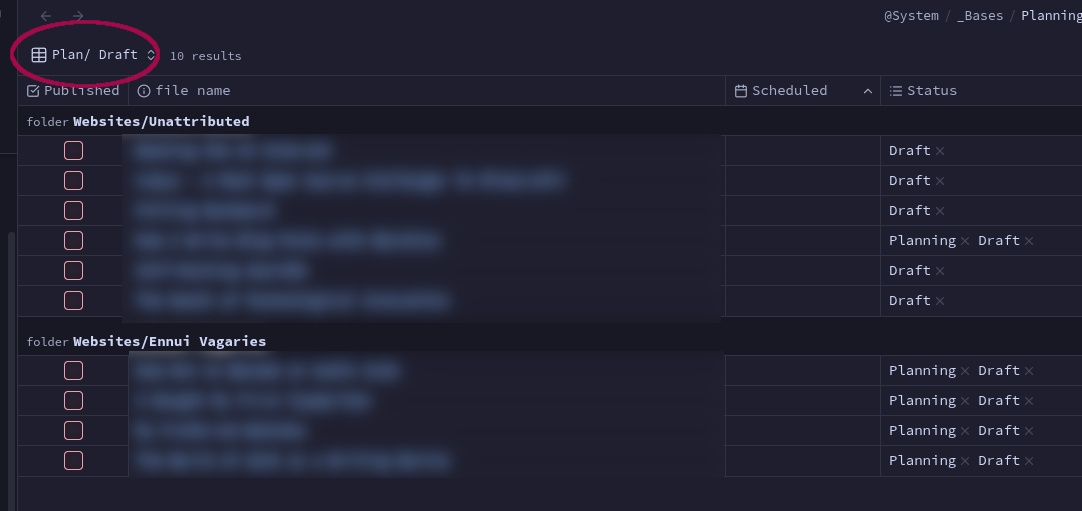
The Plan / Draft view lets me see just the articles I am working on.
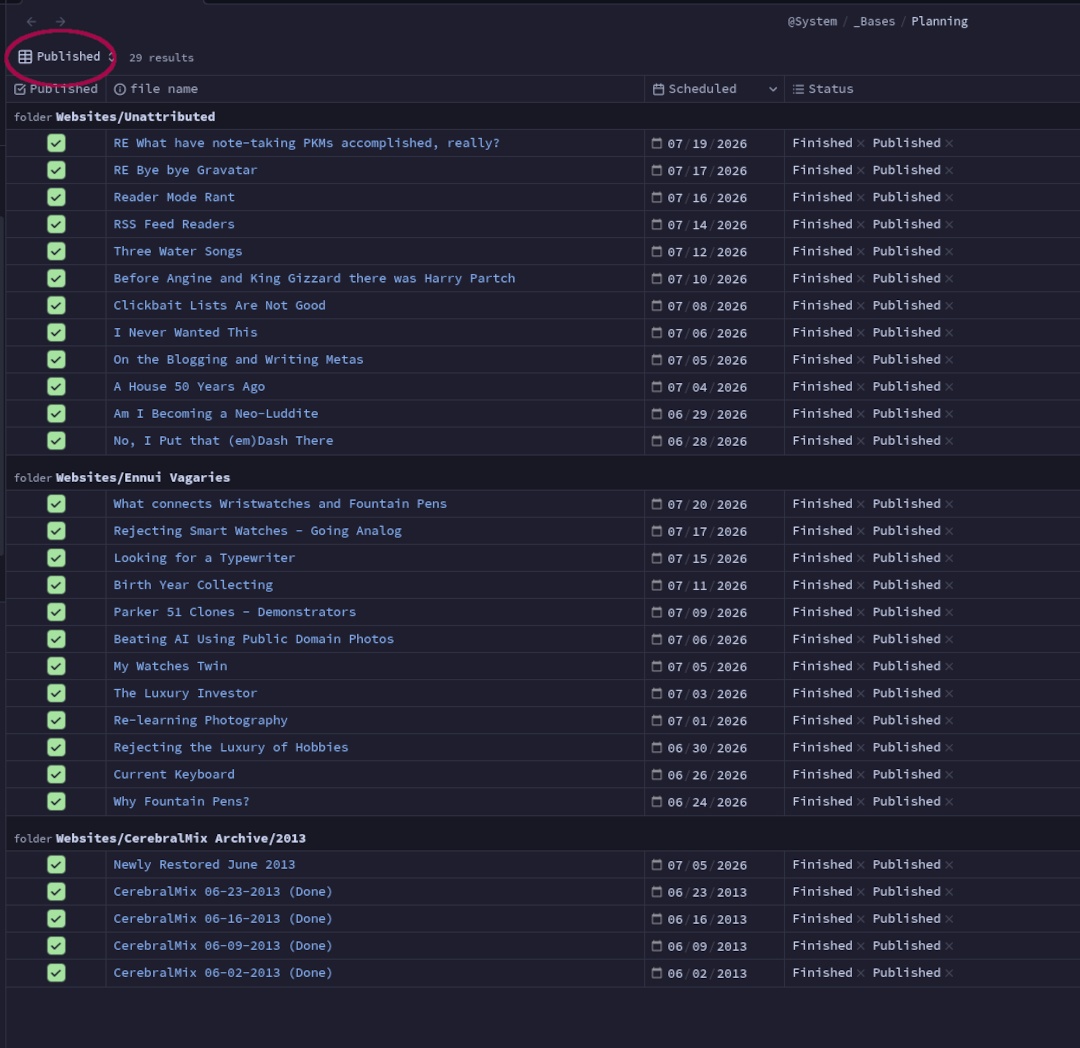
And the Published view lets me see what I've already posted.
There are two “genius” parts to this system. First, all this information is part of the article, it's not some extra information that I need to keep track of. Second, I can update the “Published”, “Scheduled” and “Status” fields from this list without having to open the specific post. How is this done?
New Post Drafts
Every time I have a new idea, I create a new document in the website's folder, and insert a template:
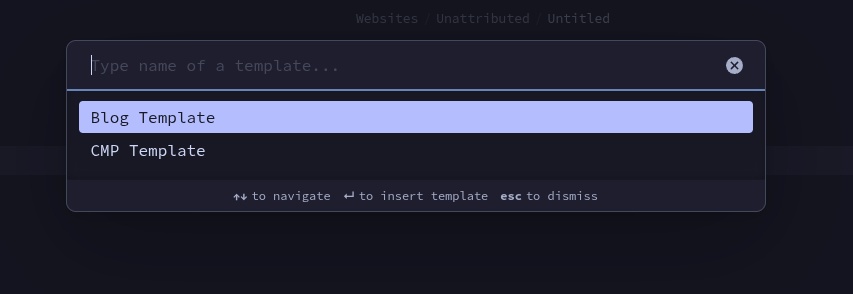 Blog Template is for website posts, CMP Template is for my archived podcast posts.
Once the Blog Template is inserted, the document shows up in the Planning table. After the template is inserted the document looks like this:
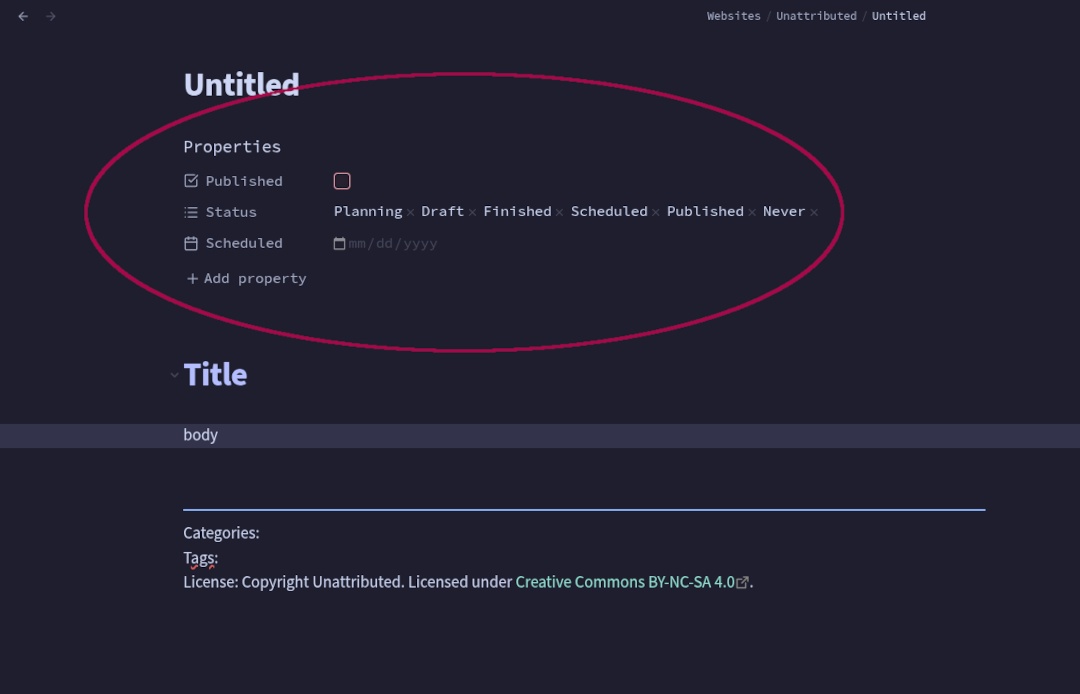 Template inserted in document, with Properties for the Planning table circled.
You might notice there is both an Untitled field, and a Title field. Untitled is Obsidian's filename for the document, whereas Title is the actual article title. Why both? Obsidian places some restrictions on the names of documents. For example, the character : isn't allowed in an Obsidian filename, but there are times when I need it in an article title.
From here, writing is dead simple…
Writing In Obsidian
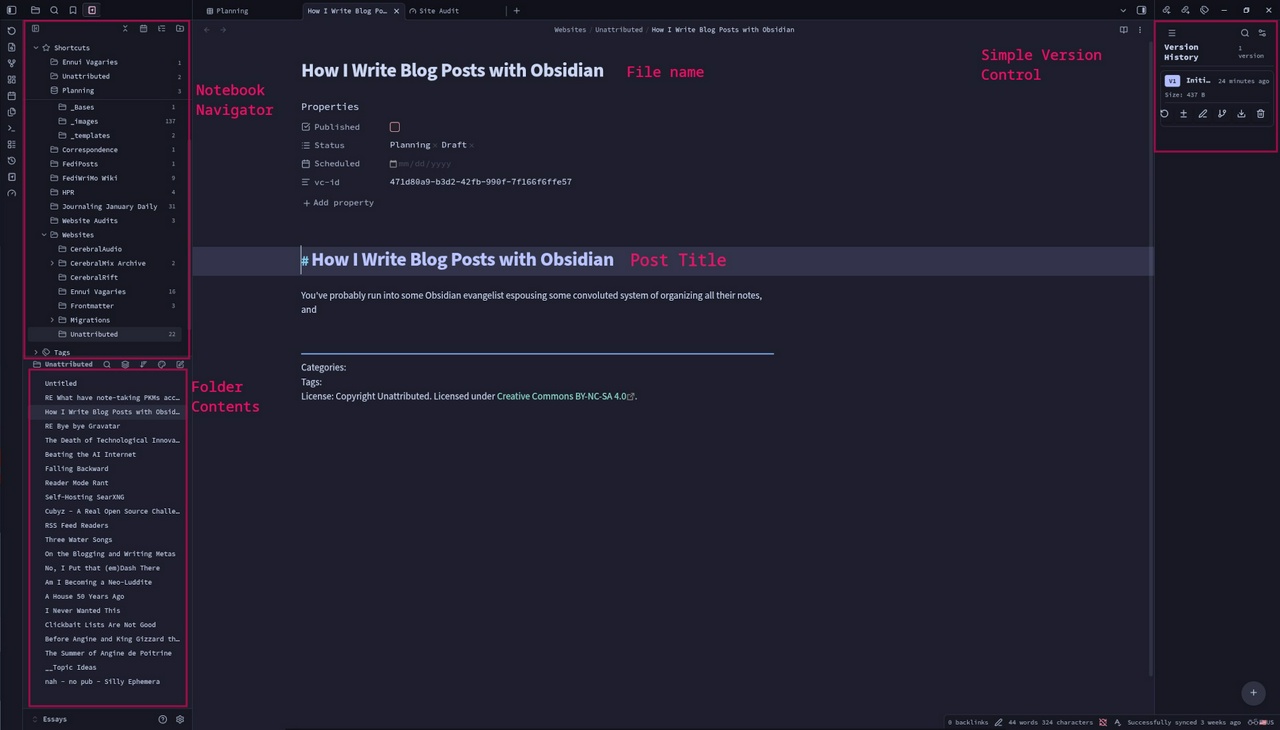 The full writing environment, with a few highlighted items.
Now it's just time to write. The majority of the screen is dedicated to the editing window where I can work on an article. If I have images (like this article) they can be drag-n-dropped into place. To the left is the Navigation panel, with my folders on the top half, and the files in the selected folder on the bottom. To the left of the editing window is the version control panel for the current article (I'll explain my choice in the next section).
When I am done with the article I export it to an output directory. The export process converts any Obsidian specific markup (such as using wiki style links) to standard Markdown formatting, and places all the attachments (images) in a folder with the article. This makes it dead simple to upload to write.as.
Obsidian Plugins
I have a selection of Obsidian community plugins that I use for working in Obsidian as can be seen in this image:
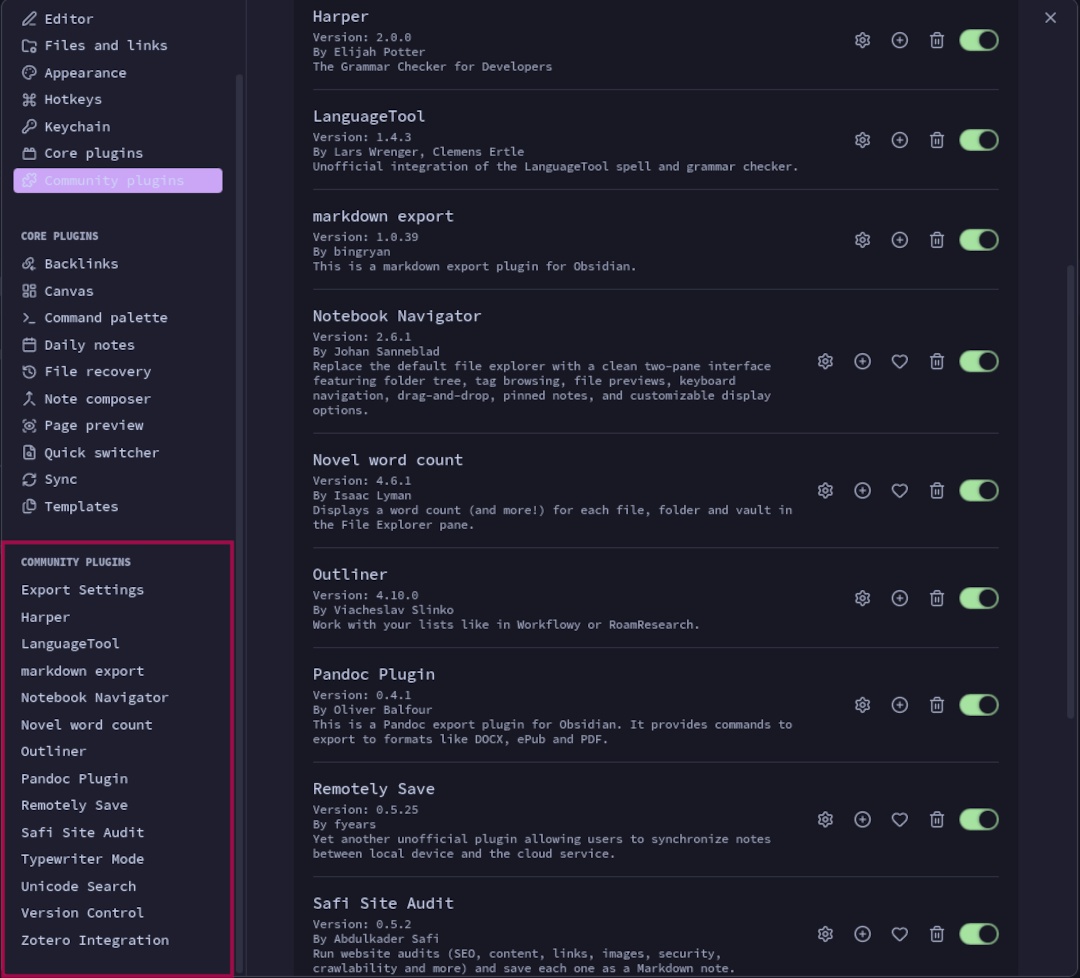 Image: screenshot of installed community plugins.
The most important of these are Harper and LanguageTool, both of applications these plugins call are installed locally on my system as I have a slow internet connection, and prefer to have my tools running locally. markdown export is the export tool I use for blog posts. Notebook Navigator enhances Obsidian's built-in navigation panel a ton, I've barely scratched the surface of what it can do. Outliner provides better list handling, allowing drag-n-drop of items, folding, and more. Typewriter Mode is really only used for one feature: highlighting the current line I am editing. (I have been doing this for 40+ years as it helps with my unique form of dyslexia.)
Remotely Save is the tool I use for syncing my vaults between systems. Version Control is a simple built-in version control system. The advantage to using it over git or another external version control system is that the versions of my documents are synced with Remotely Save. This removes the need to synchronize a git repository separately from the vault.
Zotero Integration allows me to search and insert bibliographic references when I need them. Alas, write.as doesn't support reference links, so I have to do it inline, instead of in end-note style.
Safi Site Audit is a tool that is unique to this vault for me. It's used to check the health of my sites, and catch any major issues, like broken links, missing alt text, and so on. I don't run it often, but it's good to be able to check and generate a report once in a while.
Conclusion
Obsidian, between it's recently added Base feature and a handful of plugins makes for a great writing environment for me. The ability to track the status of the posts I am working on, have version control over the documents, and have some additional tools that allow me to customize the environment to my liking.
I know there are a lot of evangelists of Obsidian out there, and their enthusiasm and overly complicated setups can make Obsidian seem unapproachable. Personally, I've found that it is excellent if you tailor it to your specific needs. And that is what is most important, and makes me most productive with a tool: doing what I require in the way that I need.
This wasn't too detailed in terms how I actually tweak things (like key bindings for certain tools). Hopefully it gives you some insight into my workflow. And maybe it will give you some ideas about how you can refine your workflow.
Categories: #HowTo Tags: #obsidian, #tool, #writing, #blogging, #configuration, #workflow License: Copyright Unattributed. Licensed under Creative Commons BY-NC-SA 4.0.
| FediRing | ||
|---|---|---|
| ◀️ Prev | Home | Next ▶️ |